
Enable “Track Cash/Check/Debit Checks, In Register”
Enable “Track Cash In Register” in the Store Config (Or any other payment type). For more information see Store Configuration Options
Register Logs Report
See the Register Logs Report for report information Register Log Report
Opening and Closing Register
Once you enable Cash Tracking (Or tracking of other payment types) a screen shown below will appear before an Employee enters a sale when they first log in.
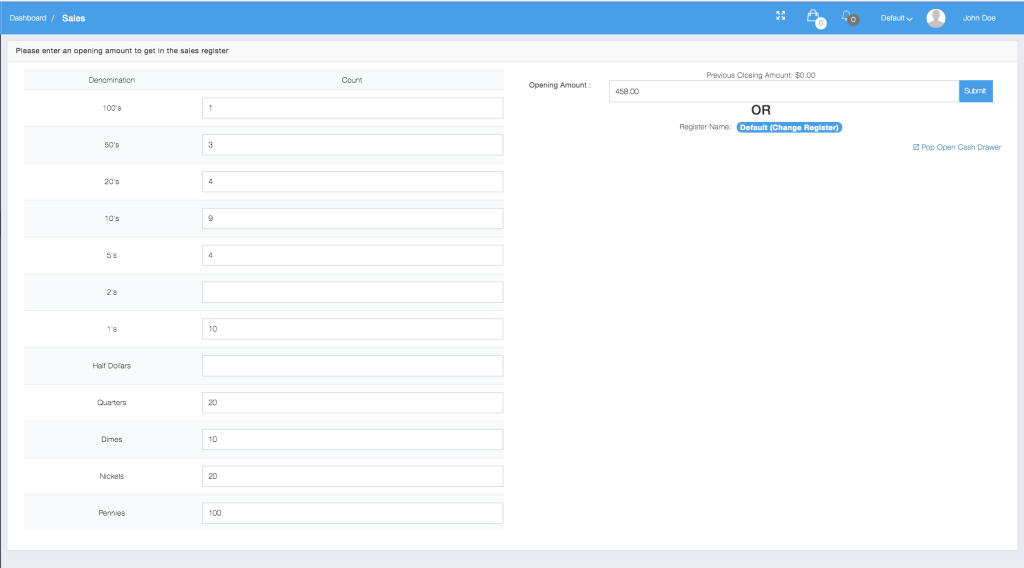
Cash & other payment types tracking Log In
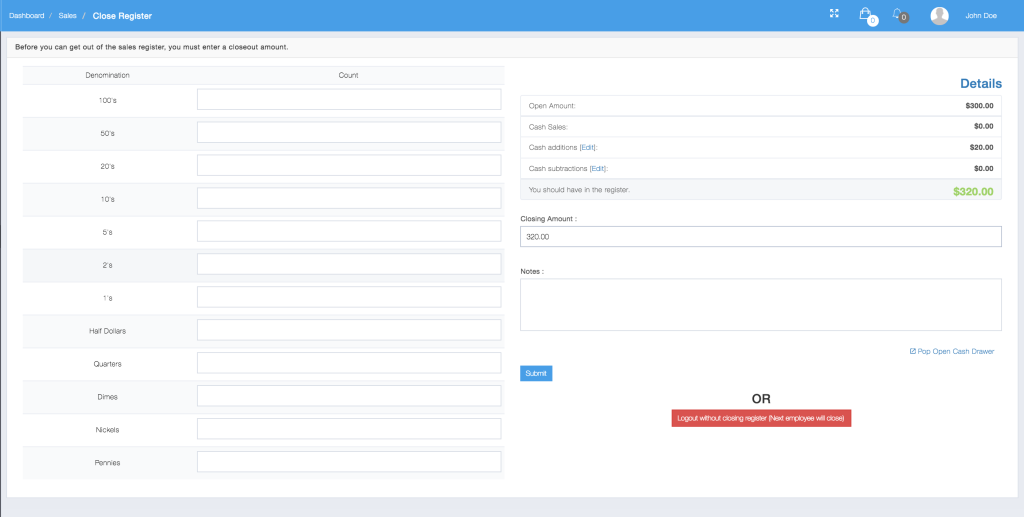
When the employee logs out they will get a screen asking them to reconcile the amount that should be in the register.
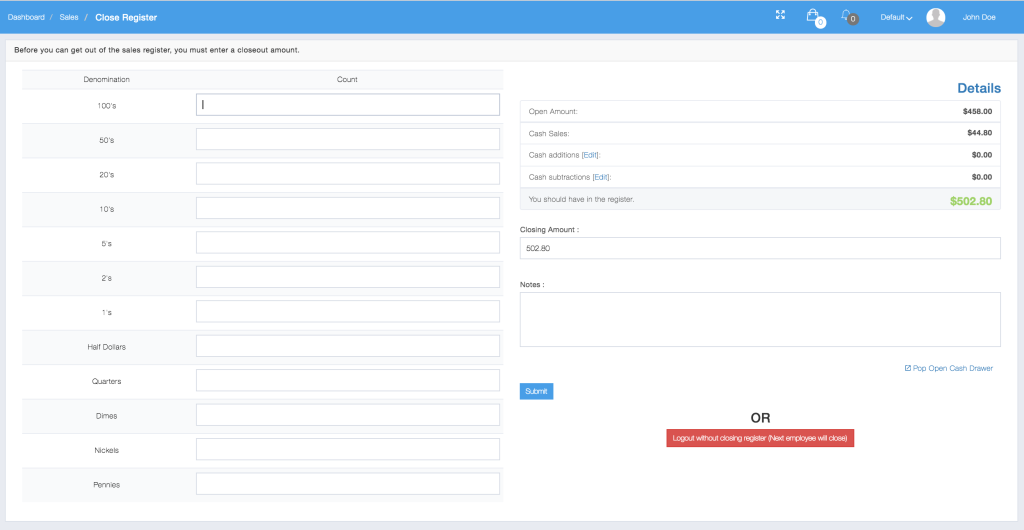
Cash & other payment types Tracking Log Out
Add Cash to Register
To add cash to the register, Click on the “…” dropdown menu from the sales interface and select “Add Cash to Register”
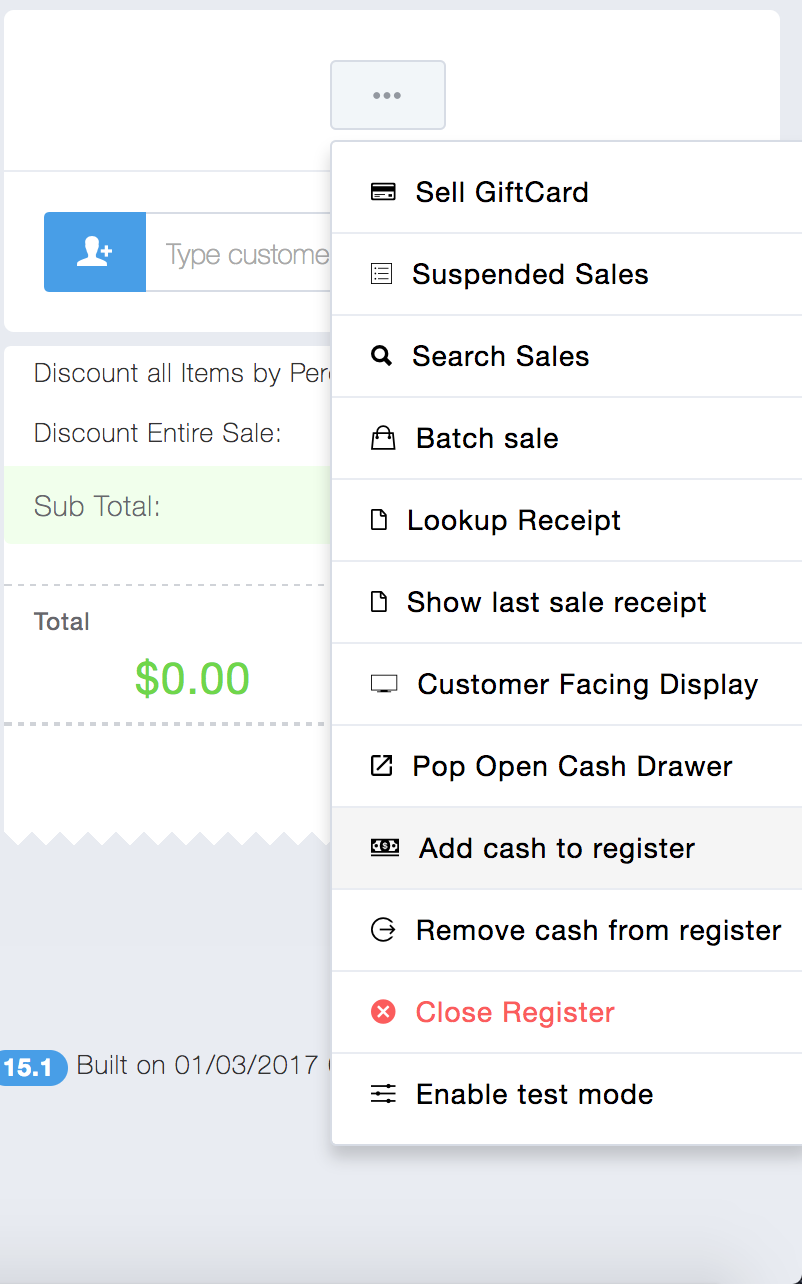
A screen will appear where you can log how much cash was entered into the cash drawer:
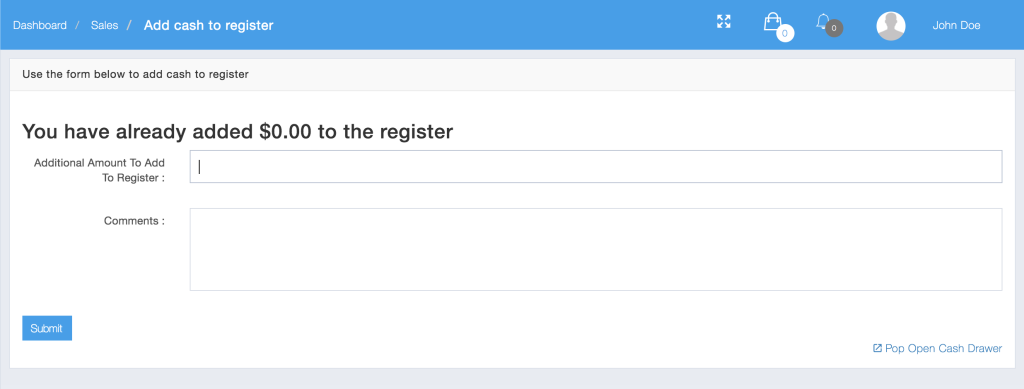
Enter the amount and an optional comment, and then click Submit.
Remove Cash from Register
To remove cash to the register, Click on the “…” dropdown menu from the sales interface and select “Remove Cash to Register”
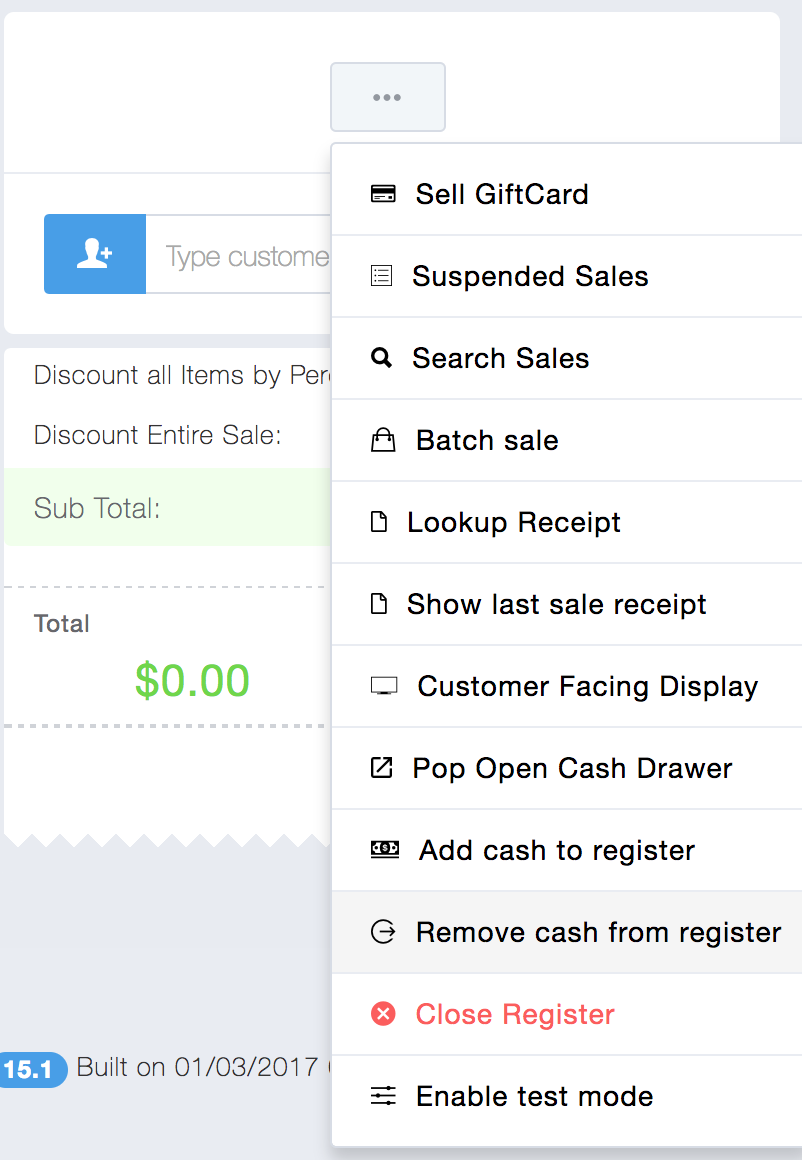
A screen will appear where you can log how much cash was removed from the cash drawer:
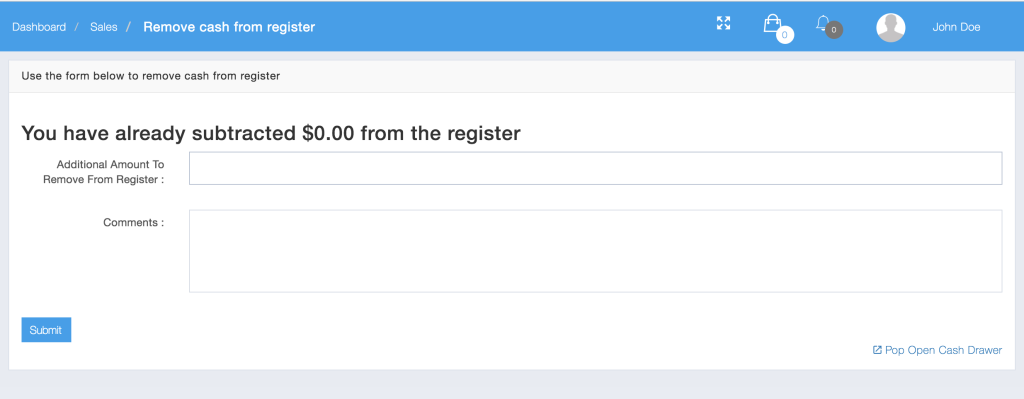
Enter the amount and an optional comment, and then click Submit.
Closing the Cash Register
To close the register, Click on the “…” dropdown menu from the sales interface and select “Close Register”
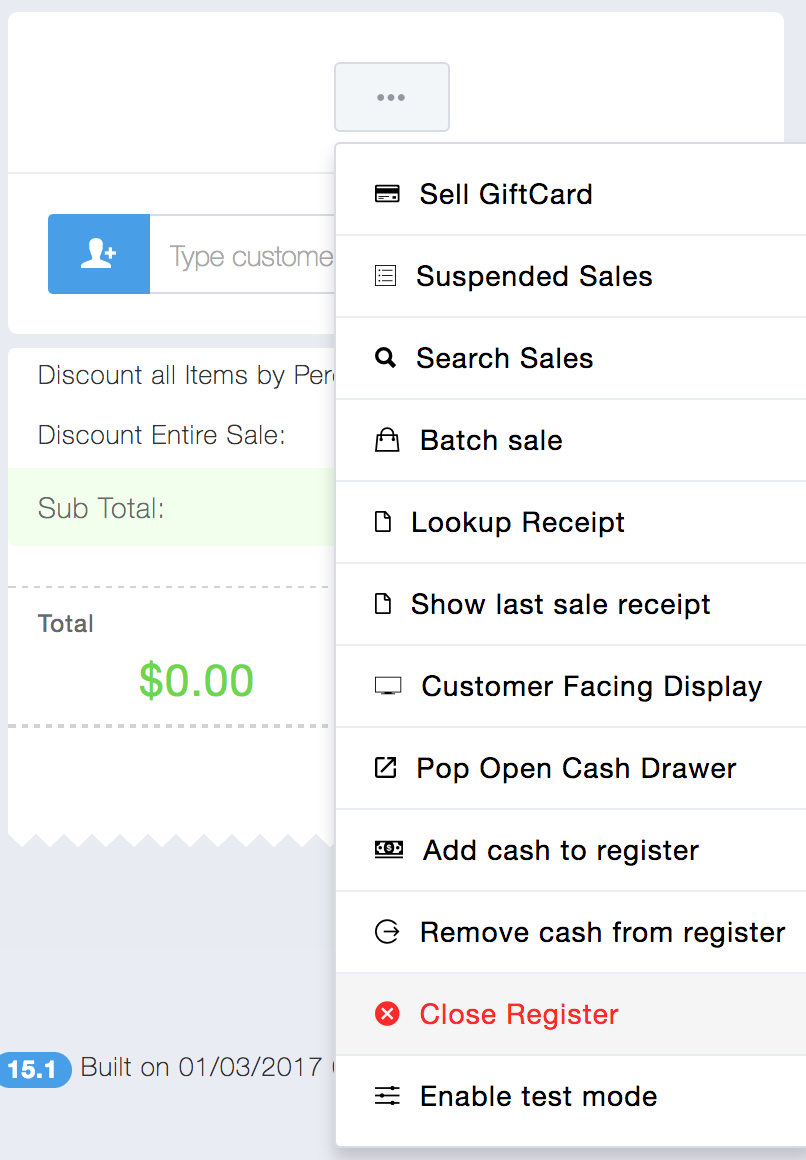
A screen will appear where you can also check how much cash the cash drawer should have. You can log how many of each type of denomination are in the register and it will reconcile the amount with the expected amount. when click submit it closes the register. You can also log out without closing the register.